
Imagine you just closed a new client. The call went great, they loved your portfolio, and they want to start on Monday. Nice!
Now comes the boring part. You open your old contract, change the client name, fix the dates, update the price, export it as a PDF, email it, and wait for them to print, sign, scan, and send it back. And after all that, you notice the previous client’s name is still sitting on page 2.
Been there, my friend? We all have.
The fix is simple: a reusable contract template. You set it up properly once, and after that every new contract takes a few minutes instead of half an hour.
In this post, we will cover what to put in a freelance contract template and two ways to build one. The first is completely free and works with Google Docs or Word. The second uses an e-signature tool so your clients can sign online. We will also be honest about where each option falls short, because no tool is perfect.
So without any delay, let’s get started.
Table of Contents
What Is a Reusable Contract Template?
A reusable contract template is your standard contract with all the fixed parts already written (scope rules, payment terms, revisions, rights) and blank spots for the things that change, like the client’s name, project details, dates, and price.
If you use an e-signature tool, the template can also remember:
- Where each signature goes – the exact spots to sign, initial, or date.
- Who signs what – for example, “Client” signs here and “Freelancer” signs there.
- The signing order – who signs first and who signs next.
Why It’s Worth the Effort
1. You Save Real Time
If you send even 4 or 5 contracts a month, the editing, exporting, and chasing adds up. A template cuts most of that out.
2. Fewer Embarrassing Mistakes
Copy-pasting an old contract is how the wrong client name, old rates, or last year’s date end up in a new agreement. A clean template with obvious blanks avoids that.
3. Your Terms Stay Consistent
When you tweak every contract by hand, your terms slowly drift. One client gets 3 revisions, another gets “unlimited” because you forgot to change it. A template keeps your rules the same for everyone.
What to Include in a Freelance Contract Template
Here are the sections most freelance contracts have:
- Parties – Your name or business name and the client’s name.
- Scope of work – What you will deliver, and just as important, what is not included.
- Timeline – Start date, milestones, and delivery date.
- Payment terms – Rate or total fee, deposit, due dates, and late fees.
- Revisions – How many rounds are included and what extra rounds cost.
- Ownership and usage rights – When the client gets the rights to the work (usually after final payment).
- Confidentiality – A short clause, or a separate NDA if the client wants one.
- Termination – How either side can end the contract and what gets paid in that case.
- Signatures and date – For both of you.
✍️ Author’s Note
We are tech bloggers, not lawyers. Use this list as a starting point. If your projects involve big money or tricky rights, have a lawyer review your base contract once. It’s a one-time cost, because after that it becomes your template.
Method 1: The Free Way (Google Docs or Word)
If you only send a couple of contracts a month, you honestly don’t need to pay for anything. Here’s how to do it for free.
Step 1: Write Your Master Contract
Write your full contract once in Google Docs or Microsoft Word, with every section from the list above.
Step 2: Mark the Parts That Change
Replace every changing detail with an obvious placeholder in capital letters and brackets, like [CLIENT NAME], [PROJECT NAME], [START DATE], and [TOTAL FEE]. Some people also highlight them in yellow so nothing gets missed.
Step 3: Save It as a Template
- Google Docs: Keep the file in a folder called “Templates” and always use File → Make a copy before editing. Never edit the master directly.
- Microsoft Word: Use File → Save As and choose Word Template (.dotx). Every time you open it, Word creates a fresh copy.
Step 4: Fill, Export, and Send
For each new client, make a copy, fill in the placeholders, search the document for “[” to make sure you didn’t miss one, then export it as a PDF and send it.
The downside: Your client still has to sign it somehow. That usually means printing and scanning, or signing the PDF in a reader app and emailing it back. It works, but you get no signing record and you end up chasing people over email. That’s where e-signature tools come in.
Method 2: A Reusable E-Signature Template
With an e-signature template, you don’t just reuse the text. You reuse the whole setup: fields, signer roles, and signing order. Sending a new contract becomes “pick template, type client’s name and email, send.”
Most e-signature tools have templates, including DocuSign, Dropbox Sign, PandaDoc, and Adobe Acrobat Sign. For this walkthrough, we tested Signibility, a newer and smaller e-signature tool, mainly because its pricing makes sense for solo freelancers and clients can sign without creating an account. You can follow the same basic steps in most other tools.
Before you start: Templates aren’t available on Signibility’s Free plan. You need the Personal plan, which is $12.99/month, or $10.39/month if billed yearly. It includes 25 signature requests a month and 5 templates. More on whether that’s enough later.
Step 1: Start a New Template
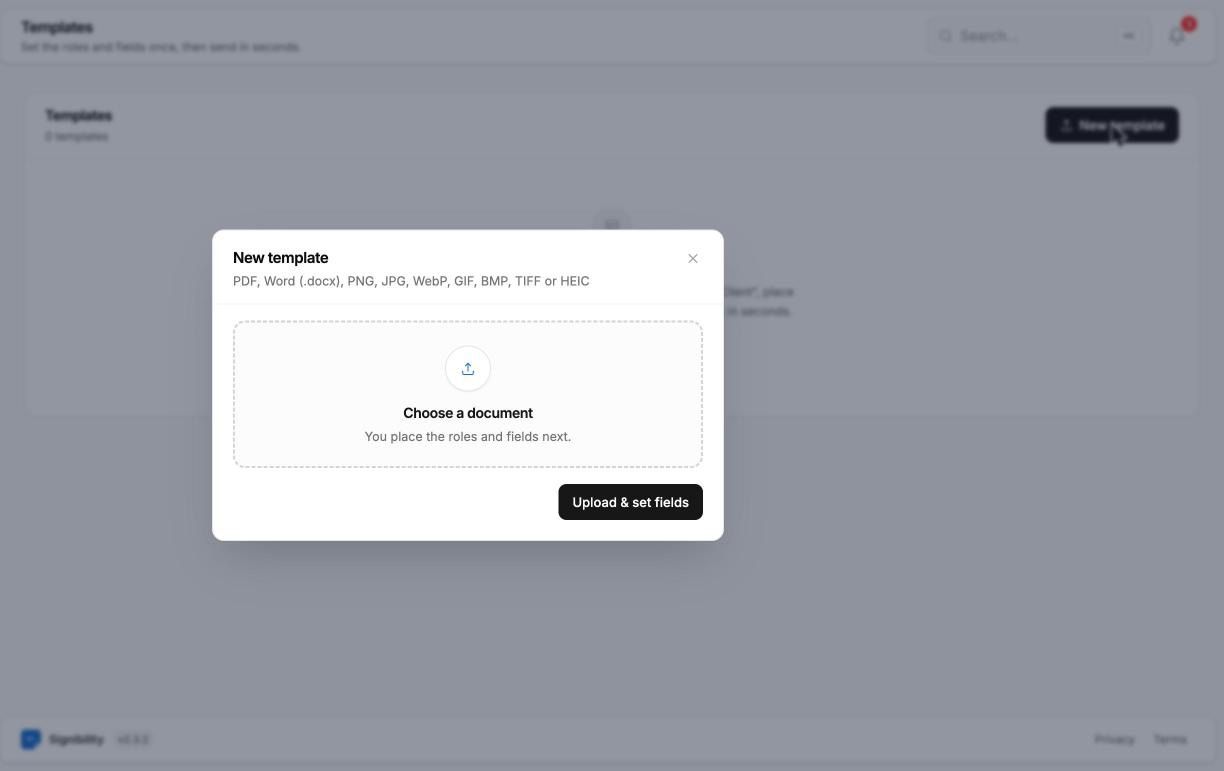
Log in to Signibility, open Templates from the left menu, and click New template.
You don’t have to convert your contract to PDF first. It accepts PDF, Word (.docx), and even images like PNG, JPG, or HEIC, so a photo of a paper contract works too. For the cleanest result, we still recommend a PDF. We used a simple two-page web design contract for this test.
Choose your file and click Upload & set fields.
Step 2: Add Your Roles
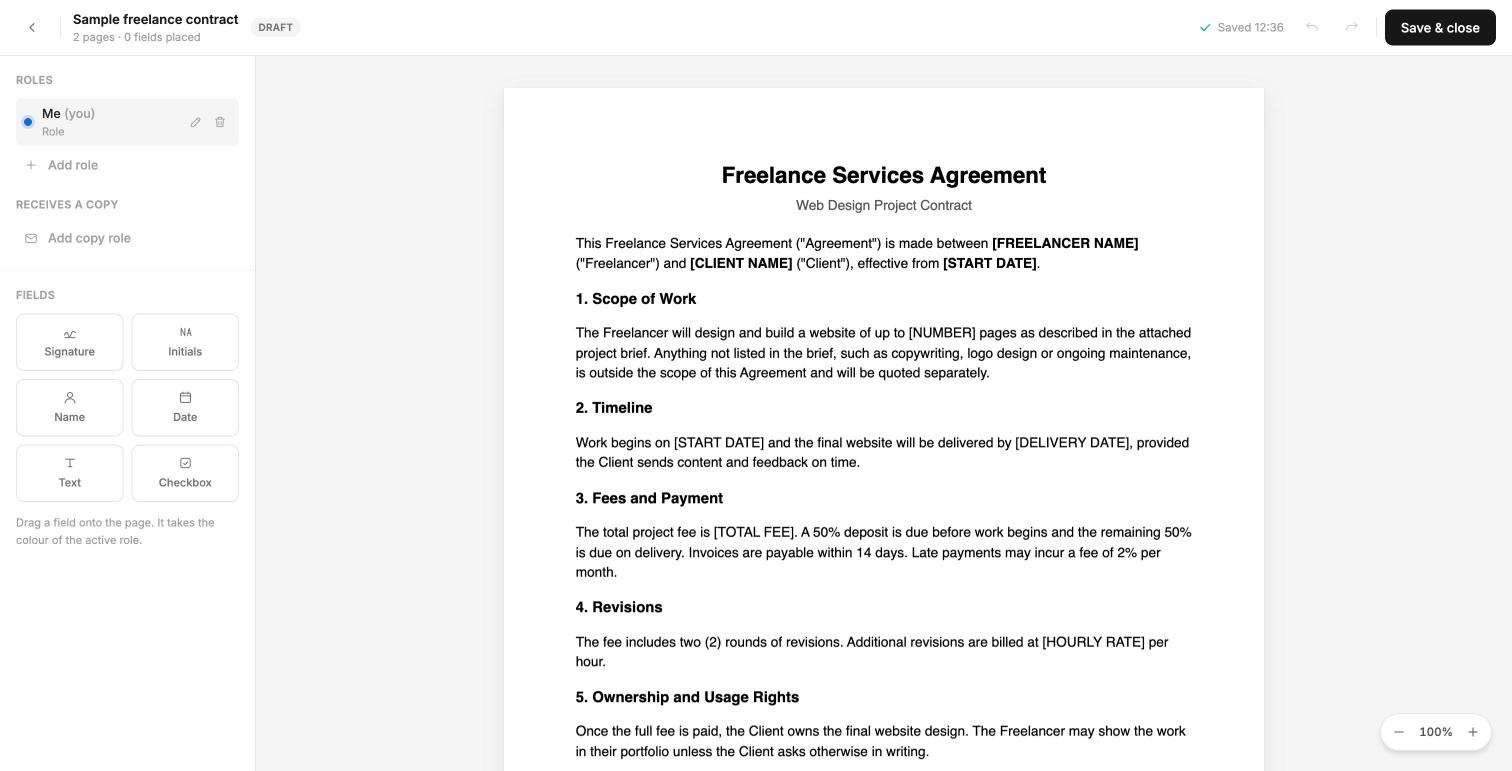
The editor opens with your document on the right and a Roles panel on the left. This is the part that makes a template reusable. Instead of adding real people, you add roles:
- Click Add a Me role for yourself (the freelancer).
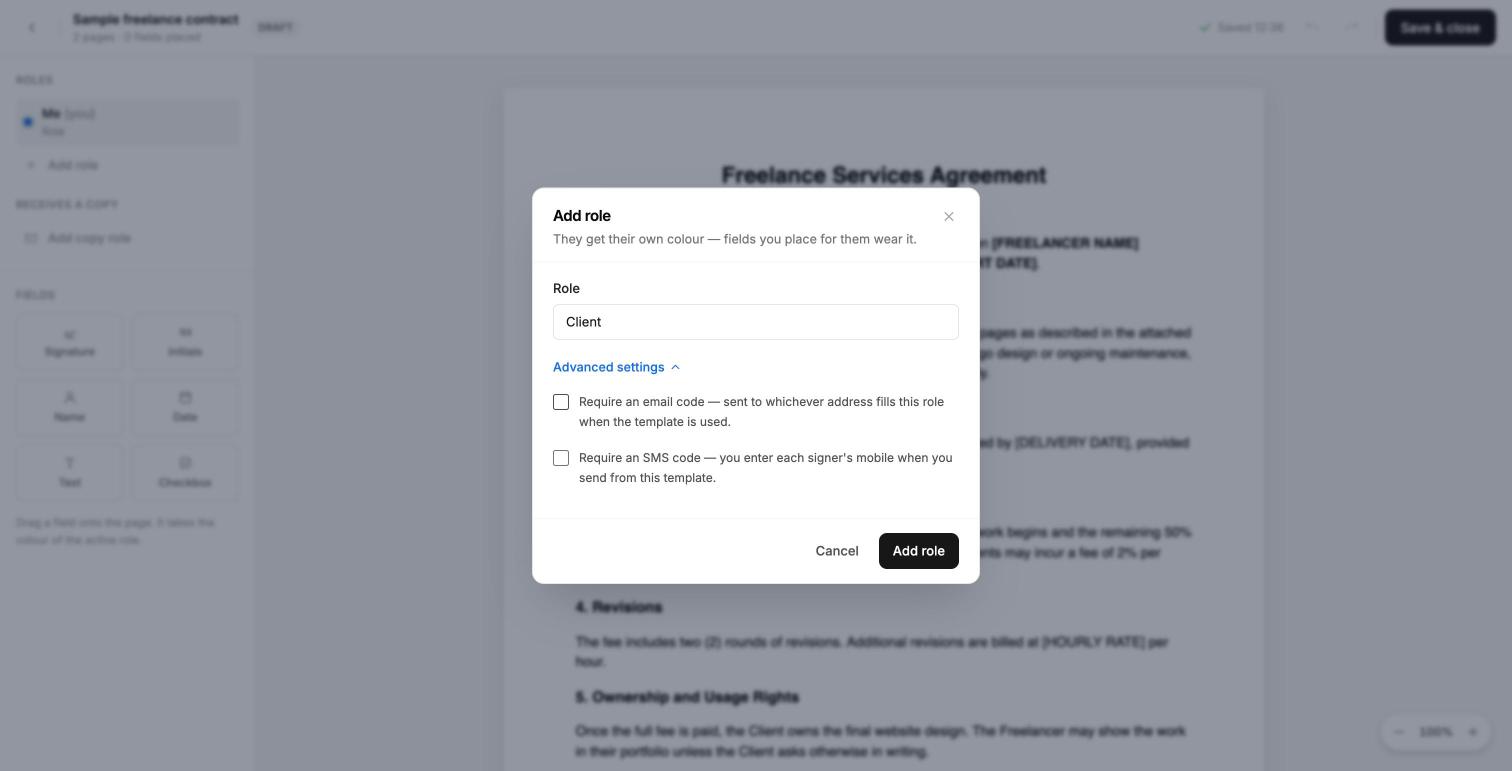
- Click Add role and name it Client.
When you add the Client role, open Advanced settings. You will see two useful options: require an email code or an SMS code before the client can sign. We’d switch on the email code for bigger projects. It’s a simple extra check that the right person is signing.
There’s also a Receives a copy option. It’s handy if your accountant or a project manager on the client’s side should get the signed copy without signing anything.
Step 3: Drag the Fields onto the Contract
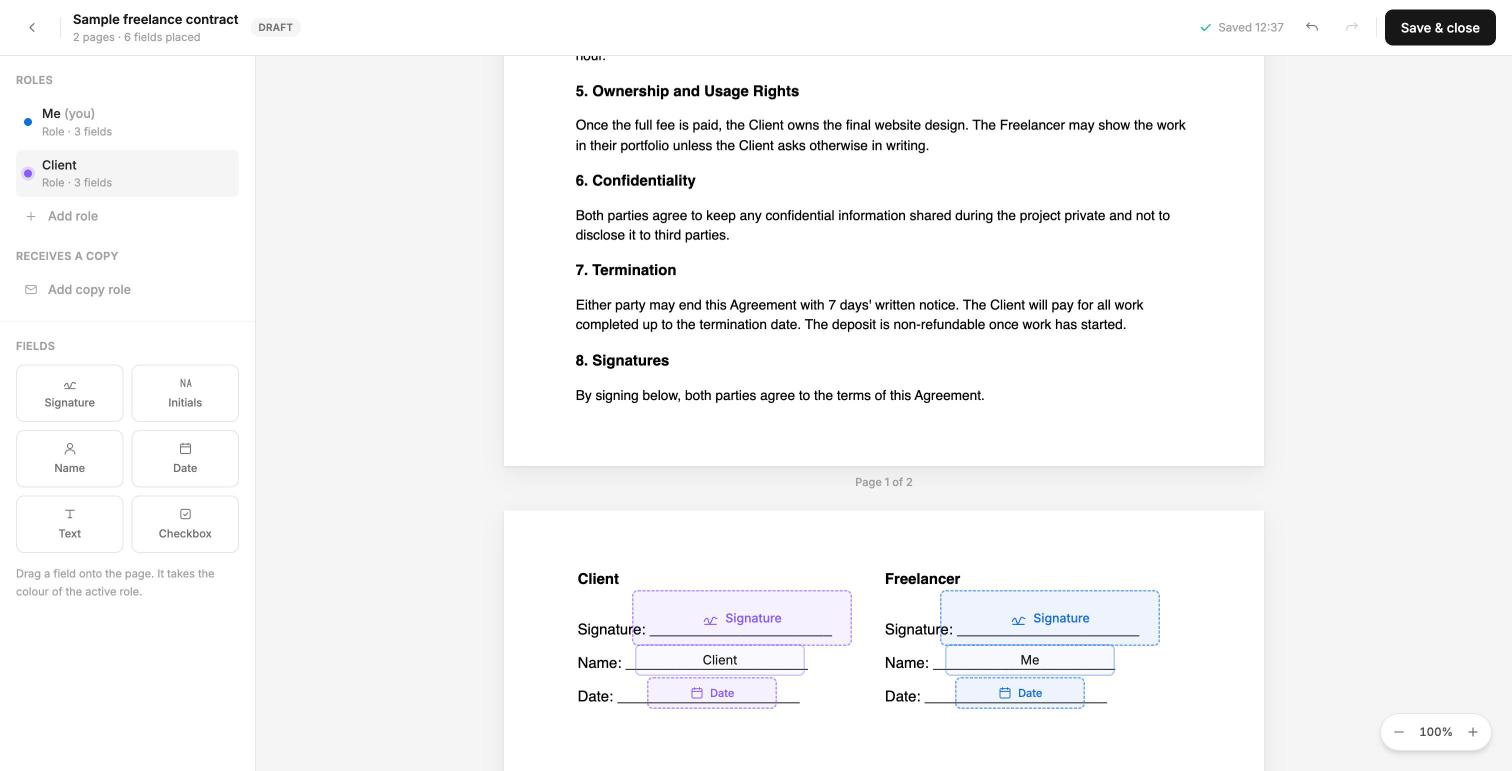
Pick a role on the left, then drag fields onto the page. Each field takes the colour of the active role, so you can see at a glance who fills what. There are six field types: Signature, Initials, Name, Date, Text, and Checkbox. You can also mark each field as Required or Optional.
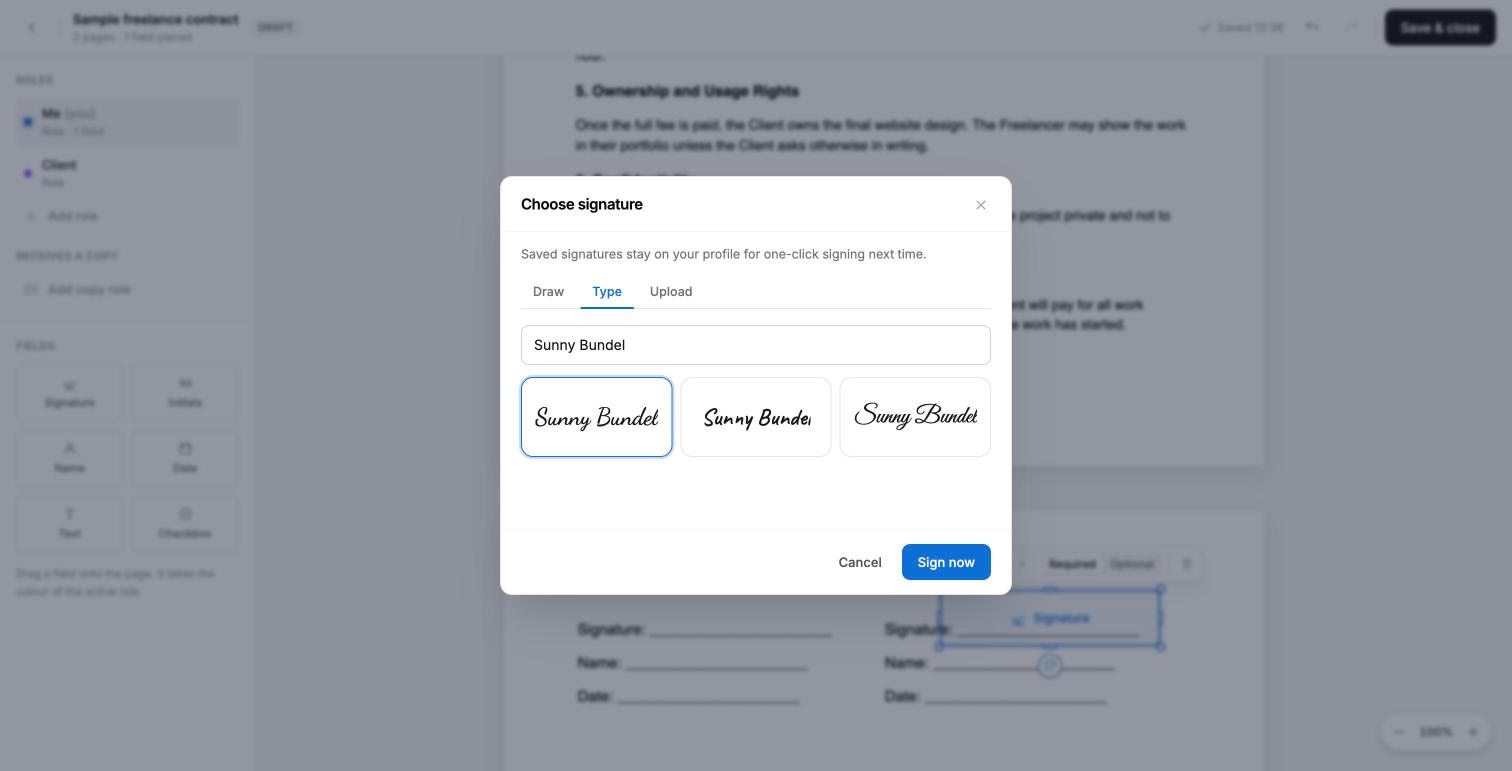
When you place a signature field for your own “Me” role, Signibility asks you to create your signature. You can Draw it, Type it, or Upload an image. We typed our name and picked one of the three handwriting styles it offers. It’s saved to your profile, so you only do this once.
For our contract, we placed a Signature, Name, and Date field for each side. Blue is us, purple is the client:
The editor saves automatically as you work, so you won’t lose anything if you close the tab by accident.
Step 4: Save the Template
Click Save & close. Your template now shows up in the Templates list with three buttons: Use, Bulk send, and Edit fields.
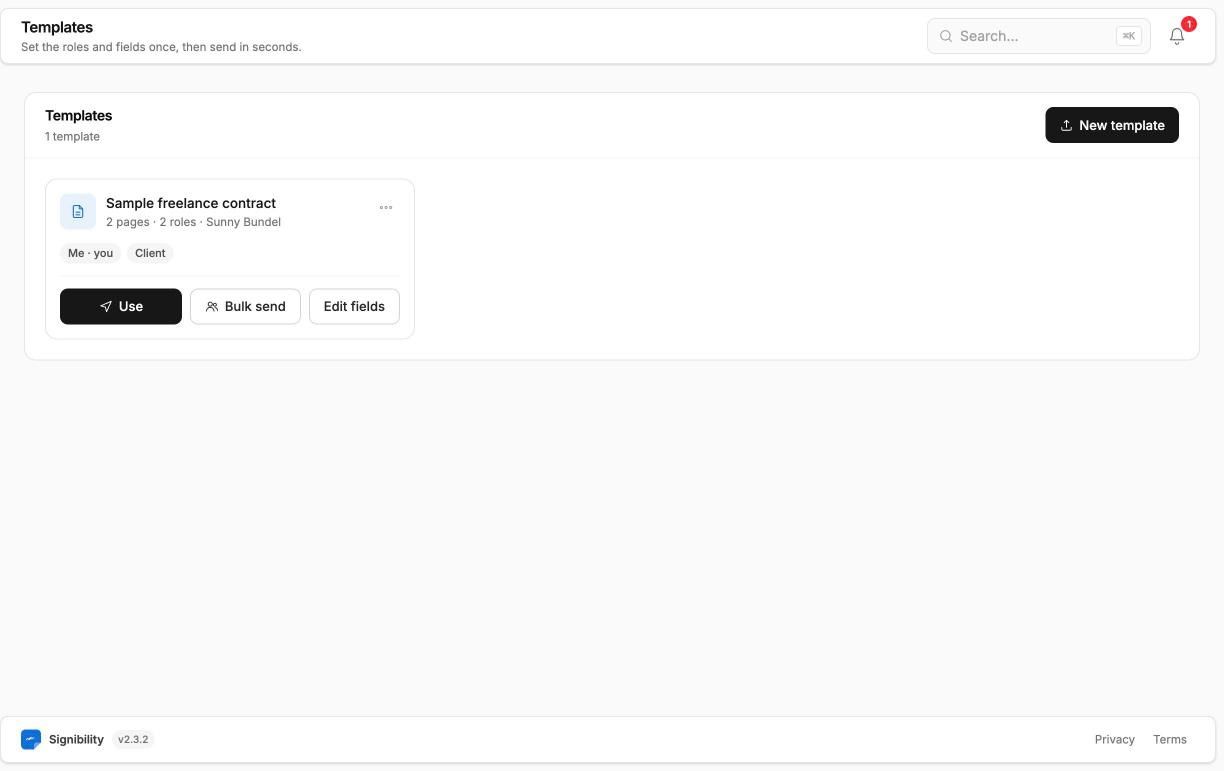
Hurray! Your reusable contract template is ready.
Step 5: Use It for a New Client
Now the fun part. When you land a new client, click Use on the template. Signibility only asks for the client’s name and email:
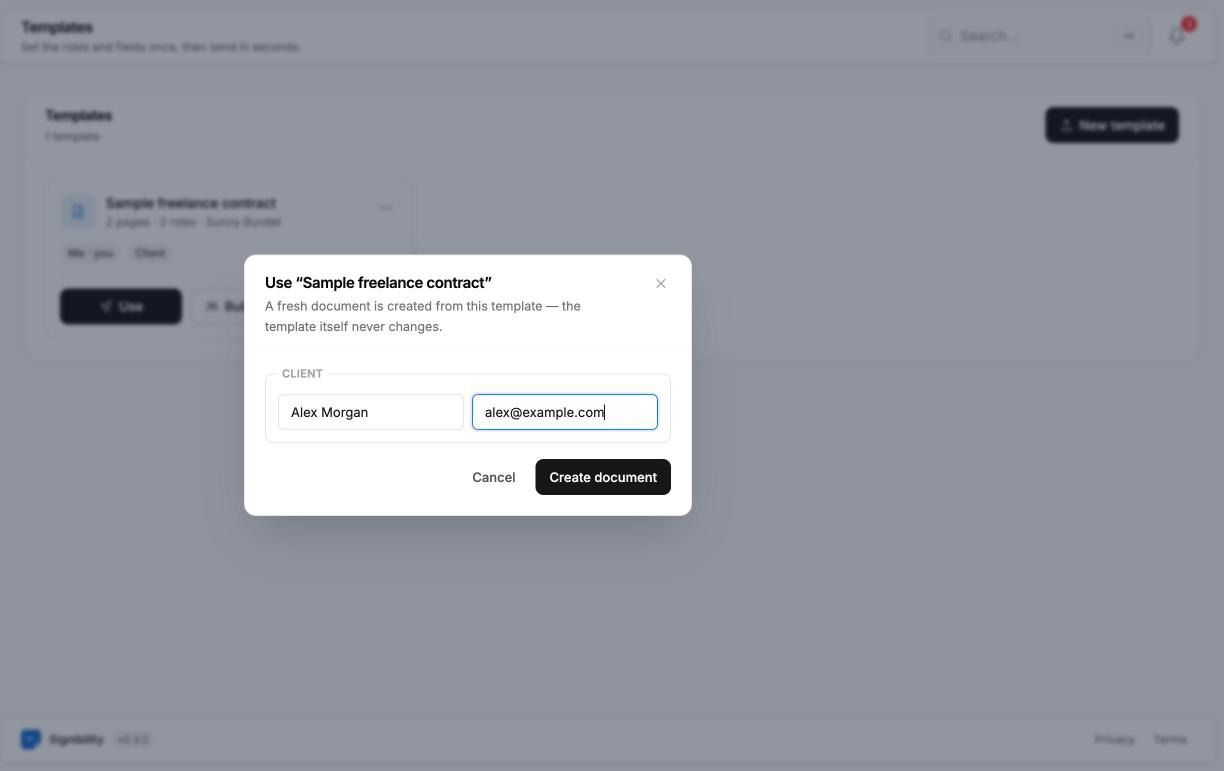
Click Create document. Signibility makes a fresh copy from the template, and the template itself never changes. Then you review the document and send it.
Your client gets a private link by email. They don’t need to create an account or install an app. Before signing, they agree to sign electronically, and then they can draw, type, or upload their signature on any device. Once everyone has signed, the PDF is sealed and includes a certificate listing who signed, when, and from where, plus an audit trail where each step is linked to the one before it.
Bonus: Send the Same Contract to Many People at Once
If you ever need the same document signed by lots of people, for example an NDA for a group of collaborators, Bulk send is worth knowing about. You upload a CSV with a name and email column (up to 100 rows), and each person gets their own copy. You can add a message, turn on automatic reminders, set a signing order, and pick an expiry date for the whole batch.
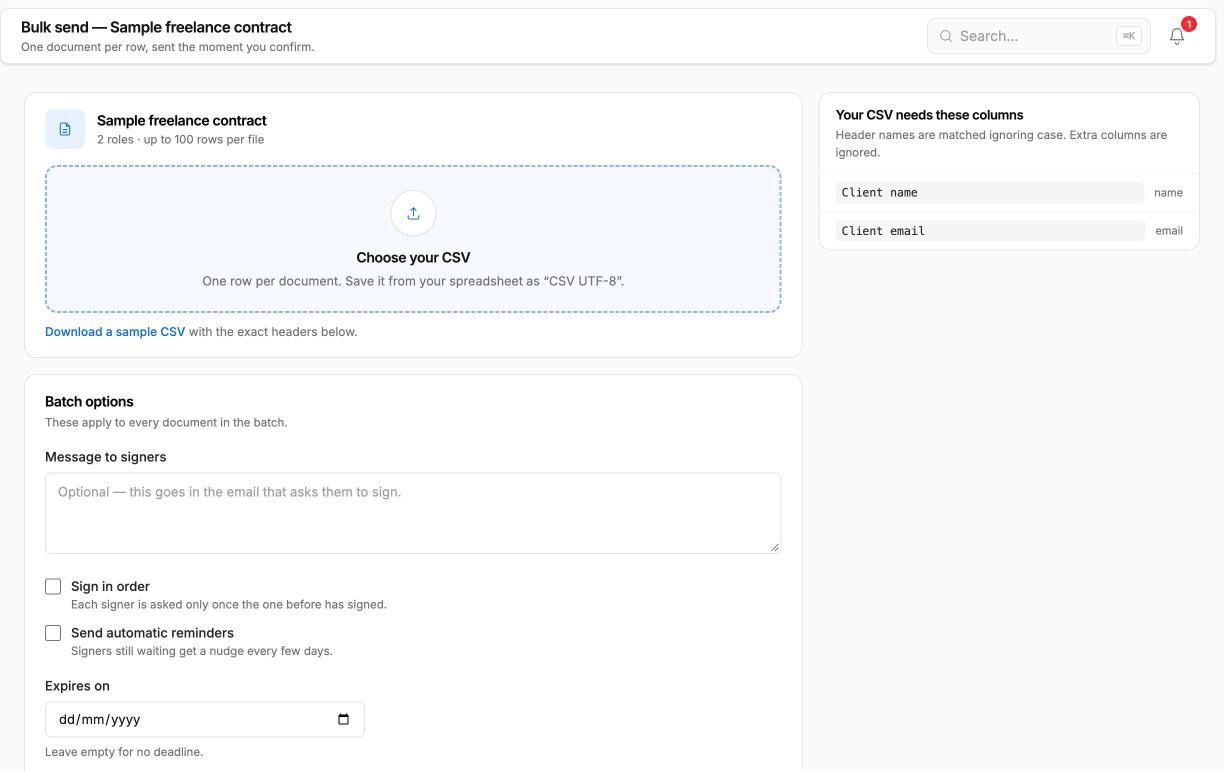
Most solo freelancers won’t need this every day, but it saves a lot of time when you do.
Our Honest Take on Signibility
We don’t want this to read like an ad, so here is what we liked and what we didn’t.
What We Liked
- Clients don’t need an account. For freelancers, this matters more than any fancy feature. Clients won’t give up halfway through a signup form.
- The audit trail comes with every plan. Even the free plan’s 3 requests get the full sealed audit trail. Some tools keep features like this for paid tiers.
- Clear pricing. One request means one document, even if three people sign it. There’s also a full refund if you ask within 14 days of your first payment.
- Reasonable security basics. Files are encrypted with AES-256, and you can log in with passkeys.
What Could Be Better
- Only 5 templates on the Personal plan. That’s fine for most solo freelancers (contract, NDA, retainer, proposal), but if you run lots of different services, you’ll hit the limit. Unlimited templates need the Business plan, which starts at 2 users ($23.99 per user per month billed yearly).
- The free plan is really just a trial. It’s 3 requests in total, and that number doesn’t reset every month.
- Adobe Acrobat shows an identity warning. Signibility signs the seal with its own certificate, not one from Adobe’s trusted list. The document still shows as unchanged, but a client opening it in Acrobat might see a warning and ask you about it.
- No SOC 2 or ISO 27001 certification, and no SSO. Signibility says this openly on its security page. It’s usually fine for freelancers, but if your clients are large companies with strict vendor checks, a bigger name like DocuSign or Adobe Acrobat Sign may be easier to get approved.
- It’s new. There aren’t many independent reviews on G2 or Capterra yet, so you’re trusting a smaller company.
Our verdict: If you’re a solo freelancer sending up to about 25 contracts a month, Signibility does the job without extra complexity. If you work with enterprise clients, have compliance requirements, or need lots of templates, look at the bigger tools first.
Tips to Get More Out of Your Templates
Use version names. When you change your rates or terms, save a new template like “Project Contract v2 (2026)” so you always know which version a client signed.
Turn on reminders. Most paid e-signature plans (including Signibility’s Personal plan) can send automatic reminders, which saves you from writing awkward “just following up” emails.
Use signer verification for big projects. For high-value contracts, asking the signer to confirm a one-time code by email or SMS adds extra proof that the right person signed.
Keep an NDA template ready. Clients often ask for one before sharing details, and having it ready makes you look prepared.
Download and organize signed copies. Don’t rely only on the tool’s storage. Keep the final PDFs in folders by year and client.
Frequently Asked Questions (FAQs)
Still have something on your mind? Here are some common questions.
Q1. Are electronic signatures legally binding?
In most places, yes. In the US (ESIGN Act and UETA), the EU (eIDAS), and the UK, electronic signatures are valid for most everyday business contracts. Some documents, like certain wills or property deeds, may still need a handwritten signature. Check your local rules if you’re unsure. This isn’t legal advice.
Q2. Do I need to pay for a tool to use contract templates?
No. Method 1 (Google Docs or Word) is completely free. You only need a paid e-signature tool if you want online signing, reminders, and a proper signing record.
Q3. Do my clients need to sign up to sign?
Not with Signibility, and many other tools work the same way now. The client just opens the link from the email.
Q4. How many templates does a freelancer really need?
Most freelancers are fine with 3 to 5: a main project contract, an NDA, a retainer agreement, and maybe a proposal or quote.
Q5. Why does my signed PDF show a warning in Adobe Acrobat?
Acrobat trusts certificates from its own approved list. Tools that use their own certificate (like Signibility) can show an identity warning even when the document hasn’t been changed. The signing certificate and audit trail are still there as a record of who signed.
Final Thoughts
Writing the same contract again and again quietly eats your time. A reusable template fixes that, and you don’t have to spend money to get started.
If you’re only sending a few contracts, the Google Docs or Word method is enough. When chasing signatures starts to annoy you, move your template into an e-signature tool. Signibility is a sensible, affordable choice for solo freelancers, as long as you’re fine with the 5-template limit and it being a newer company.
Share this article with your freelancer friends and help them spend less time on paperwork and more time on work that actually pays!
